
SSD Slowing Down? There's a Hidden Fix You're Missing
Why SSDs Slow Down Over Time
Solid State Drives (SSDs) have become the primary storage solution for most computers due to their speed, reliability, and compact design. Unlike traditional hard drives, which use spinning disks and mechanical arms to read and write data, SSDs store information on NAND flash memory. This makes them faster, quieter, and less prone to physical damage. However, despite these advantages, SSDs can experience performance degradation over time.
One of the main reasons for this slowdown is the way SSDs manage data. As an SSD fills up, it begins to struggle with maintaining optimal performance. This is because the drive needs empty blocks of memory to store new data efficiently. When there aren't enough empty blocks available, the SSD must perform additional operations—like garbage collection—to free up space. These background processes can slow down your system, making tasks like booting up or launching applications feel sluggish.
The Role of Garbage Collection
Garbage collection is a critical process that helps maintain the performance of an SSD. It involves identifying and erasing blocks of data that are no longer needed, so they can be reused for new information. When an SSD is brand new, it has plenty of empty blocks, allowing it to handle data quickly and efficiently. But as the drive fills up, the number of available blocks decreases, forcing the SSD to spend more time managing and rearranging data.
This increased workload can lead to higher latency during data writes, which results in slower performance. In extreme cases, the SSD may even begin to exhibit signs of wear, such as longer boot times or delayed file transfers. While this is a natural part of using an SSD, there are steps you can take to mitigate the issue and keep your drive running smoothly.
Ensure TRIM is Enabled
One of the most effective ways to maintain SSD performance is by ensuring that the TRIM command is enabled. TRIM is a built-in feature in Windows and most Linux systems that helps the SSD identify which blocks of data are no longer in use. By flagging these blocks, TRIM allows the SSD to clean them up more efficiently, reducing the need for time-consuming garbage collection processes.
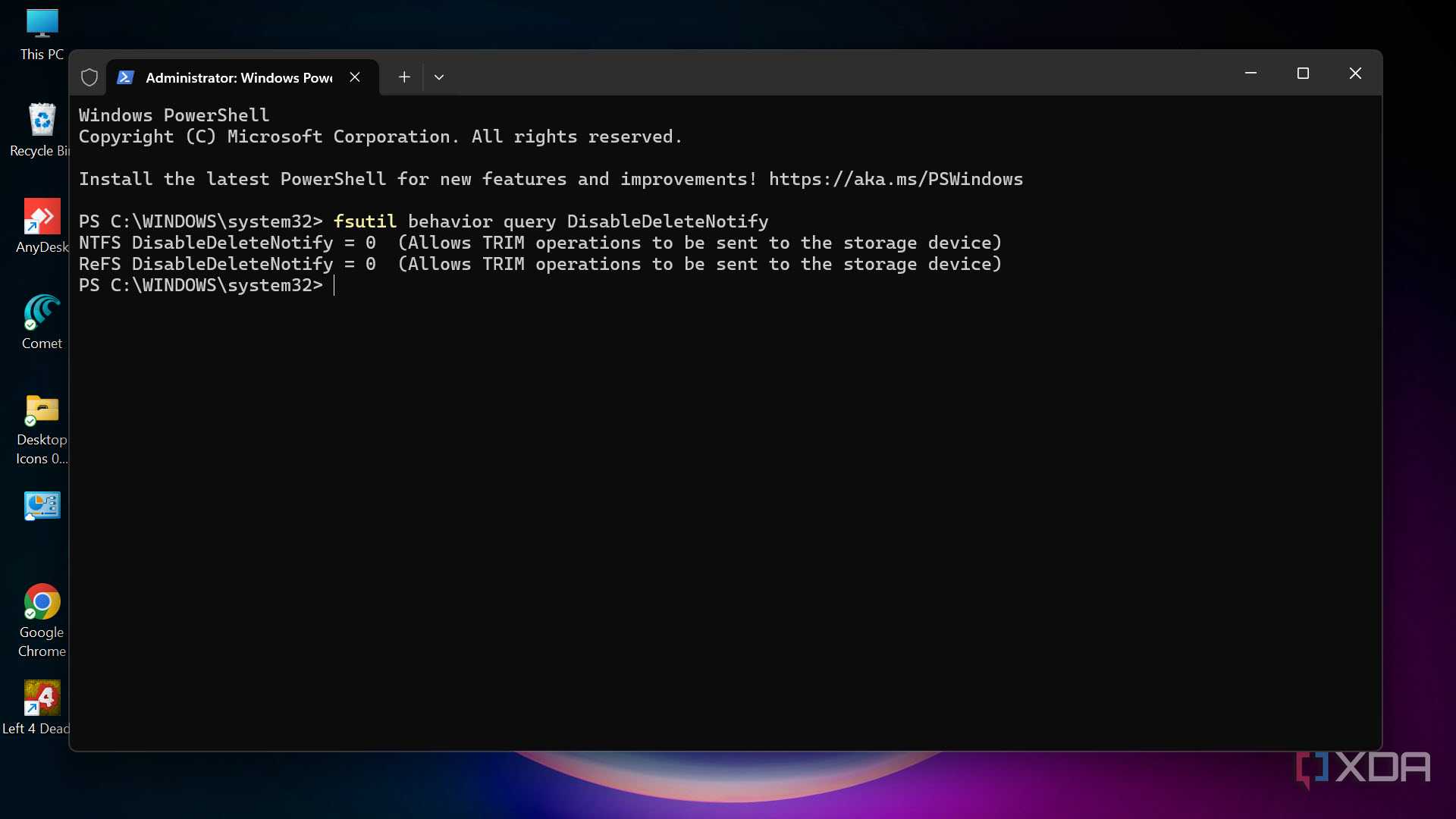
To check if TRIM is enabled on your Windows PC, open an elevated Command Prompt and enter the following command:
fsutil behavior query DisableDeleteNotify
If the result is DisableDeleteNotify = 0, TRIM is already active. If not, you can enable it by running:
fsutil behavior set DisableDeleteNotify 0
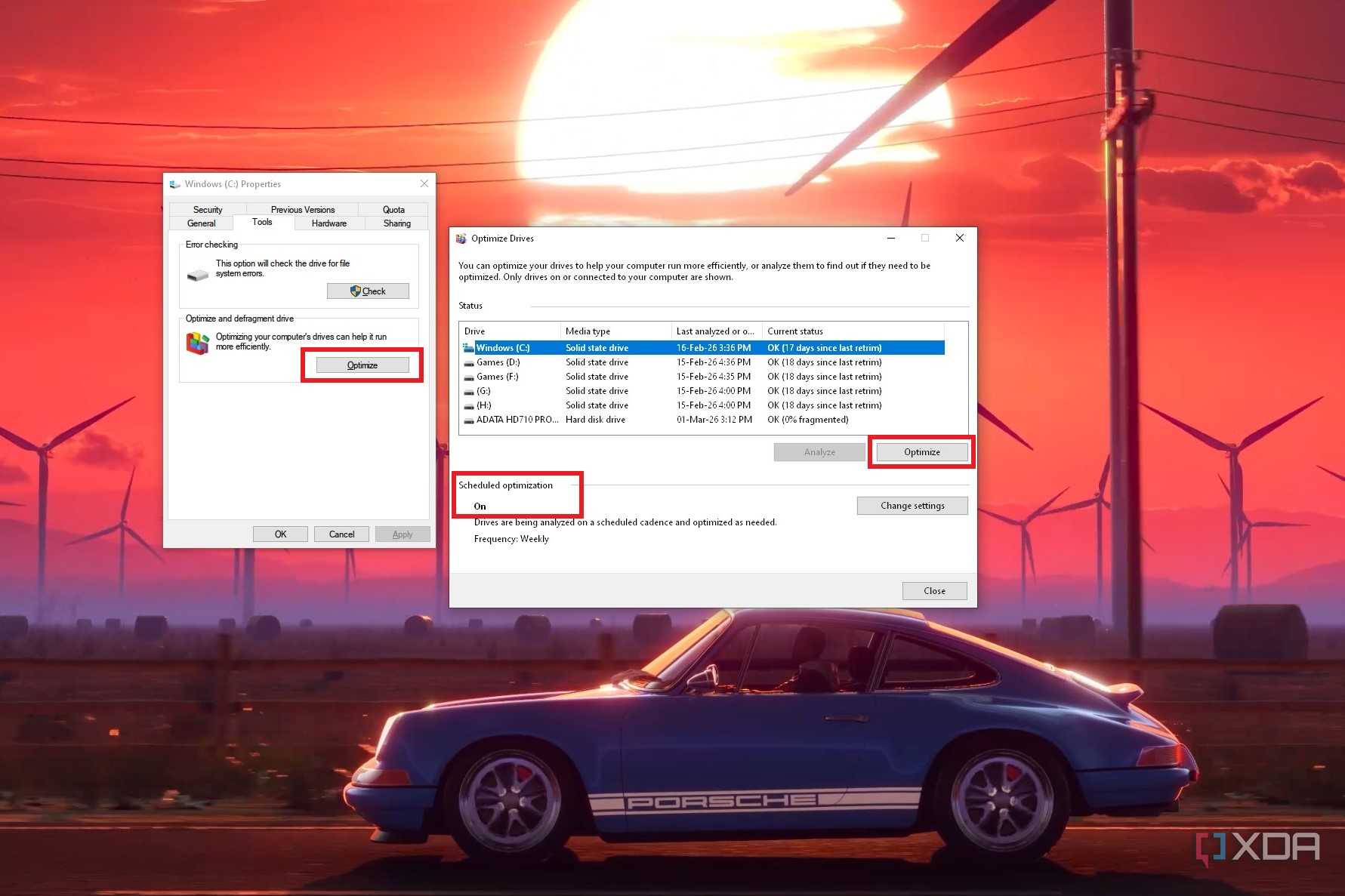
You can also check TRIM status through the "Properties > Tools" section of your boot partition. Click the "Optimize" button and verify that "Scheduled optimization" is set to "ON." If it's not, you can manually optimize your drive to ensure TRIM is working correctly.
Keep at Least 15% Free Space
Another important factor in maintaining SSD performance is keeping a portion of your drive free. Experts recommend leaving around 10–15% of your SSD’s capacity unused. This gives the drive enough space to perform garbage collection effectively and avoid unnecessary write operations.
For example, on a 2TB SSD, keeping 15% free would mean reserving about 300GB of space. While this might seem like a lot, it’s actually a small price to pay for improved performance and longevity. Avoiding full drives ensures that your SSD can continue operating at its best for years to come.
Consider SSDs with DRAM Cache
Some SSDs come equipped with a dedicated DRAM cache, which can significantly improve performance. The DRAM chip helps the drive controller track valid and invalid data blocks more efficiently, making garbage collection faster and more accurate. While these drives may cost slightly more than their DRAM-less counterparts, the performance benefits are well worth the investment.
Conclusion
While SSDs are not immune to performance degradation, there are several steps you can take to extend their lifespan and maintain their speed. Ensuring TRIM is enabled, keeping free space available, and choosing SSDs with DRAM cache are all effective strategies. By following these tips, you can enjoy a faster, more responsive system without the need for frequent upgrades.
Posting Komentar untuk "SSD Slowing Down? There's a Hidden Fix You're Missing"
Please Leave a wise comment, Thank you