
Check if you're paying for 4K streaming you're not receiving
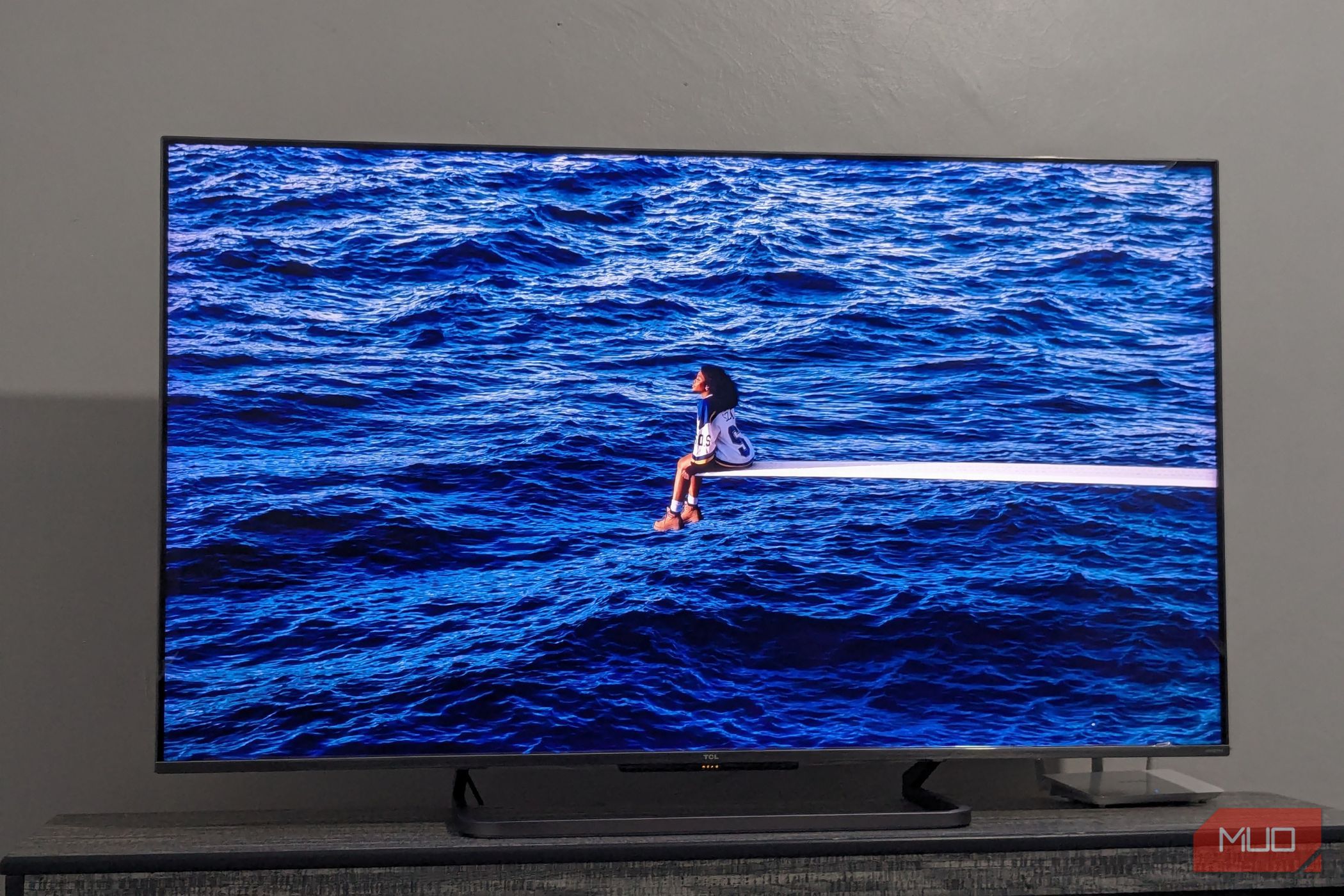
Understanding 4K Streaming and What You Need to Get It Right
If you're paying for 4K streaming, it's because you want to experience television in the highest possible detail. The goal is to see every nuance, from the finest details on a person's face to the smallest textures in a scene. If you can't distinguish each hair on someone’s head, then you might be missing out on the value of your subscription.
However, even if you pay for 4K streaming, there are instances where you might not actually be getting the full 4K experience. This issue can occur at various points in the streaming process. In this guide, we’ll walk you through the most common problems and explain how to verify that your entire entertainment setup supports 4K streaming.
Make Sure You Have the Right Plan
Not all streaming plans offer 4K capabilities, so it’s crucial to confirm that you’re subscribed to the correct tier. For example:
- Amazon Prime Video, Hulu, Disney+, Apple TV+, and Peacock all provide 4K streaming across all subscription tiers.
- Netflix, HBO Max, and Paramount+ require you to upgrade to their premium plans to access 4K content:
- Netflix Premium: $24.99 per month
- HBO Max Max Ultimate Ad-Free: $20.99 per month
- Paramount+ Premium Plan: $13.99 per month
YouTube allows 4K streaming for any video that is available in 4K, regardless of whether you have a Premium subscription. However, if you use YouTube TV, you'll need to purchase the YouTube TV 4K Plus add-on for $9.99 per month.
It's also worth noting that some older content on services like Netflix may not be available in 4K, no matter which plan you choose. Always look for 4K labels on content to ensure it's available in the desired resolution.
How to Check if You Have a 4K-Capable TV
The first step in ensuring 4K streaming is having a 4K-capable TV. Most modern TVs include settings to check this. Here’s how to do it on different brands:
- Samsung TVs: Go to Settings > Support > Picture Diagnostics > Picture Test. The TV will display “4K” or “UHD” if it's capable.
- Sony TVs: Press the "Display" button on your remote while playing content to see the current resolution.
- LG TVs: Navigate to Settings > All Settings > General > About This TV.
If you're unsure, you can test your TV by watching a 4K video on YouTube. Search for “4K video,” play it, and go to the settings gear icon to select 2160p. If you can choose this option, your TV is 4K-capable.
External Devices and Cables
If you stream through an external device, such as a gaming console or streaming box, make sure it supports 4K. Popular devices like the PlayStation 5, Xbox Series X, Apple TV 4K, and Google TV Streamer all support 4K.
For Roku and Amazon Fire TV Stick users, check the model. Only certain versions, like the Fire TV Stick 4K or Roku Streaming Stick 4K, support 4K. Older models typically do not.
To connect these devices to your TV, you'll need 4K-capable cables. The best options are Ultra High Speed HDMI (HDMI 2.1) or Premium High Speed HDMI (HDMI 2.0). Standard HDMI cables designed for 1080p won’t work. Look for labels on the cable packaging that indicate “Premium High Speed” or “Ultra High Speed.” If you're unsure, check your TV’s settings to see if it supports 2160p.
How to Check Your Internet Speed
A fast internet connection is essential for smooth 4K streaming. Ideally, you should have at least 25 Mbps, with 50 Mbps being preferable for a seamless experience.
To check your speed, use online tools like Fast.com or Speedtest.net. These platforms will quickly measure your download and upload speeds. If your speed is below the recommended threshold, consider contacting your internet service provider or upgrading your plan.
Other Things to Keep in Mind
Even with the right equipment and internet speed, 4K streaming can sometimes experience issues due to network congestion or signal drops. Additionally, if your TV looks blurry, you can adjust its settings to improve clarity.
Finally, if you find it difficult to tell the difference between 4K and 1080p, you might be just as satisfied with a lower-resolution stream. In that case, opting for a more affordable plan could save you money without sacrificing your viewing experience.
Posting Komentar untuk "Check if you're paying for 4K streaming you're not receiving"
Please Leave a wise comment, Thank you