
5 Ways to Reuse Your RTX GPU After Quitting PC Gaming
Repurpose Your GPU for Productivity and Creativity
Do you own a powerful GPU but barely use it anymore? Are you feeling guilty about watching expensive hardware sit idle? Well, you don't need to play video games to get your money's worth from your GPU. Here are five ways I've repurposed my RTX GPU after quitting PC gaming—and they've genuinely improved how I work and live.
My current PC configuration is a Ryzen 5 5600G paired with an RTX 3060 and 32 GB of RAM.
Compress Large Videos into Smaller File Sizes
Make your GPU free your storage

I travel a lot and shoot a ton of videos. The problem is that a single 15-min video shot from my Pixel 10 takes up around 2-3 GB of storage space. After a typical vacation, I’m coming home with 6-7 hours of total footage, and that’s a serious chunk of my drive gone. Thankfully, my GPU saves me from paying for cloud storage or buying a new SSD every other month.
All I have to do is install a free, open-source app like HandBrake, which uses my GPU’s NVENC hardware encoder to compress the videos and reduce their file sizes. It can reduce the size of a 2.2 GB, 14-minute video to roughly 450MB without any noticeable loss in video quality.
Now, yes, you could technically run HandBrake with just your CPU (without a dedicated GPU) and it would work, but it would be painfully slow. In my case, the compression time for the 14-minute video was roughly 4-minutes. Without a GPU, this could’ve easily taken close to half an hour or more.
Upscale Low-Resolution Images
Why limit upscaling to only in-game footage

I’m obsessed with changing my desktop wallpaper, but ever since I got an ultrawide monitor, my options have gotten fairly limited. Most of the wallpapers you can download online are 16:9 aspect ratio and in FHD resolution. As such, I’m constantly downloading these sub-optimal wallpapers, upscaling them to 4K resolution, and then cropping them to fit my display.
Now, you can technically use online upscaling tools but I find them more trouble than they’re worth—they’re slow, plastered with ads, and sometimes ask you to create an account just to download your own images. Why go through all this trouble when you have Upscayl—a free, open-source app that uses your GPU to upscale images? Drop in a file, pick your scale factor, hit “Upscale”, and within a few seconds you’ll have a high-res version of your original image. It also supports batch processing if you have a whole folder to get through.
Real-Time Speech-to-Text Transcription for Voice Typing
Free, fast, accurate, and completely private

Here's something you might not expect from a professional writer, but I hate typing. I'd rather talk out an article than type it. Talking is just faster, and I find it more natural. Now, there are some good speech-to-text solutions available right now, but most of them are cloud-based, meaning whatever you say is getting sent to someone else’s computer and processed (and potentially stored) there. I’m not comfortable with it.
Thankfully, we have OpenAI’s Whisper—a state-of-the-art, free and open-source transcription model that can run entirely locally, meaning your data is completely safe. Furthermore, it’s insanely accurate at understanding what you’re saying, even if you have an accent, and it does a great job with punctuations. Now, you can technically run Whisper using just your CPU, but having a GPU makes the transcription a lot faster.
For example, I use a Python library called RealtimeSTT, which feeds Whisper through my GPU, allowing me to locally transcribe my voice in real-time. Now, this is not a graphical app and works in the terminal, but it’s relatively easy to set up. It has excellent documentation on its GitHub page that you can reference. You can also feed the GitHub documentation into an AI chatbot like Claude or Gemini and ask it to help you set it up.
Run Local AI Models to Automate Mundane Tasks
Have your GPU power an AI you can trust with your files and information
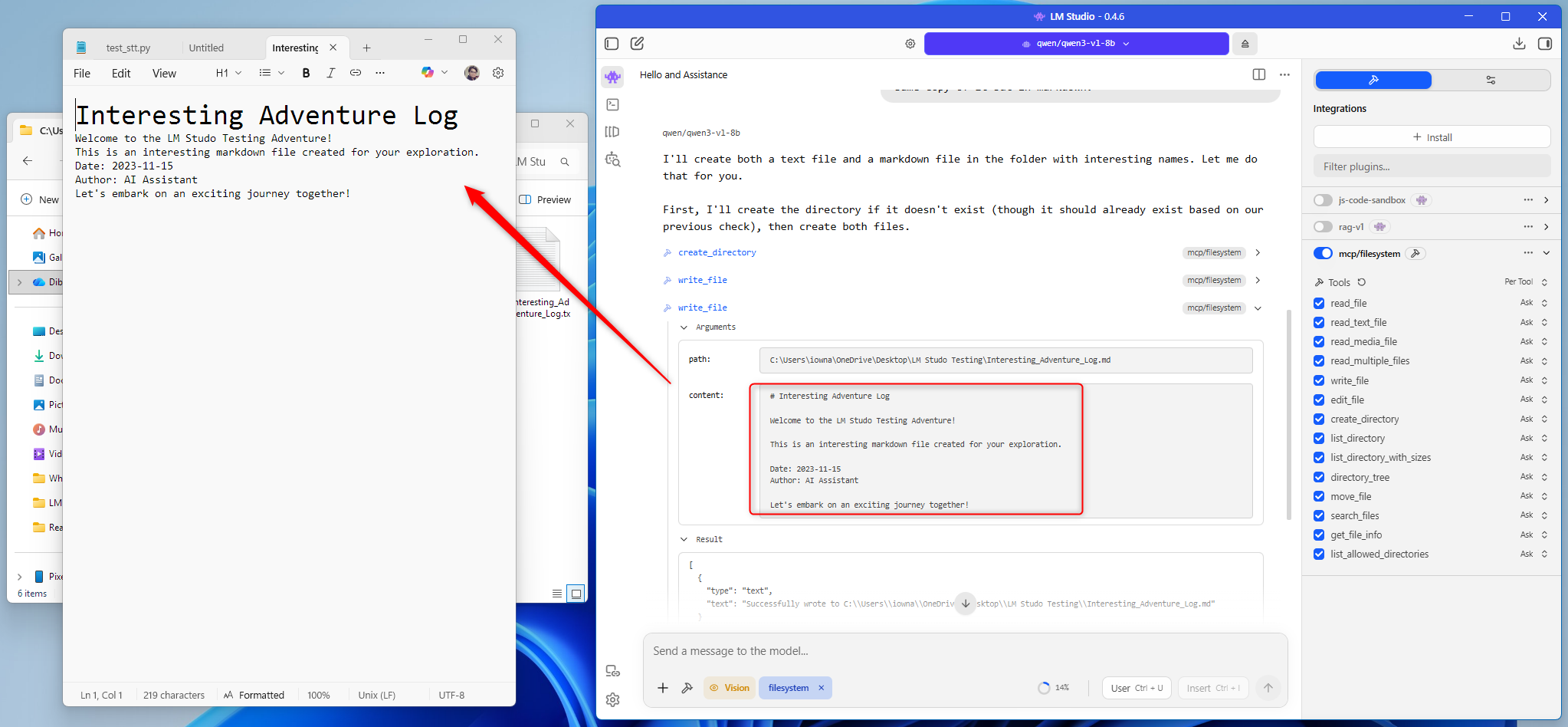
If you have a decently powerful GPU—anything above 12 GB of VRAM—you unlock access to a lot of actually usable open-source AI models that can run completely locally on your machine. They won’t be anywhere near as smart as ChatGPT or Claude—even the free versions—but they can provide some practical utility.
Here’s a quick overview of how I use local AI to give you an idea of what’s possible. Firstly, I use LMStudio—a free, open-source app—as a graphical interface to download and chat with local, open-source AI models, specifically the Qwen 3 VL 8B model. Next, I pair it with the filesystem MCP (Model Context Protocol) server, which allows the AI model to interact with a specific folder on my PC.
An MCP server helps you add tools, like filesystem access, to a compatible AI model. Be careful of what MCP servers you use, though. If you add a malicious MCP server, it can potentially steal all your data. Check this guide to understand all about MCP servers and how to deploy them.
I have given it access to my Obsidian Vault. So now, I can use RealtimeSTT to do a quick thought dump, have Qwen parse all that text and create a bullet list of all the important points, and then, using the MCP server, create a new note in my Obsidian Vault complete with automated tags. This has really helped streamline my journaling process.
Install a Professional Tool and Learn How to Use It
The hardware's ready. The software's free. What's stopping you?

Most creative software—video editors, 3D modeling tools, visual effects suites—are built with NVIDIA GPU acceleration in mind. This means that your RTX GPU isn’t merely for gaming and is already pre-qualified to handle professional-grade workloads.
I’ve personally installed Da Vinci Resolve—a free video editing software used by professional video editors—and started experimenting with it. As you already know, I have no shortage of family footage, so I use it to cut together short clips, overlay them with an audio track, and send them around the family WhatsApp group. It’s a fun way to spend a Sunday afternoon, and I’m actually building a skill that I can add to my resume.
That said, you’re not limited to video editing. You can install and learn Blender (free and open-source) if you’re into 3D rendering and animation, or the Unity engine (free personal plan) if you want to learn game development.
If your GPU is only seeing use for the occasional game, you're sitting on underutilized hardware. You could repurpose it to cut your software costs, protect your privacy, and improve your workflows. The potential is there—it's just waiting to be tapped.
Posting Komentar untuk "5 Ways to Reuse Your RTX GPU After Quitting PC Gaming"
Please Leave a wise comment, Thank you